You scroll past a tweet that nails something you've been trying to say all week. You want to share it. You have three options, and most people pick the worst one.
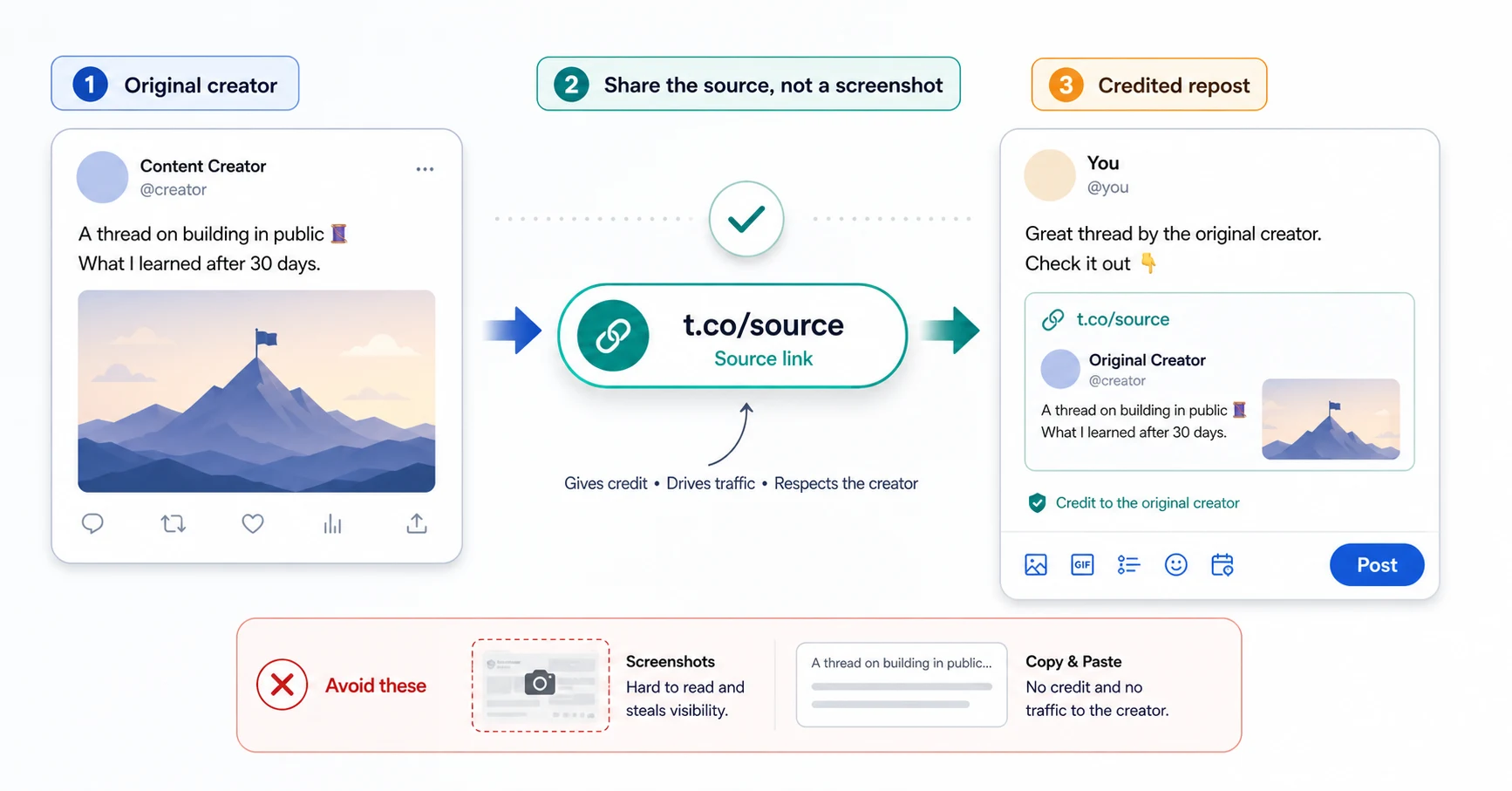
- Option 1: Screenshot it. Strips every link, every handle, every timestamp. The original creator becomes a tiny pixelated
@you can barely read. They get zero engagement from your repost. - Option 2: Quote-tweet it. Better — the original is embedded — but it's embedded in a tiny preview at the bottom of your tweet. Your followers skim past it. The framing is "here's me reacting" instead of "here's something good."
- Option 3: Copy the text and post it as your own. This one's actually theft, even if you didn't mean it to be. The creator gets nothing.
There's a fourth option that almost nobody knows about, and it's by far the cleanest. Include the original tweet's t.co link inside your repost. X expands it into a full-size embedded card. Your caption sits cleanly above. The original creator gets the views, the click-throughs, the engagement — all of it.
This post walks you through three ways to do that, including one free tool we built to make it a one-click thing.
What's a t.co link?
X automatically wraps every URL posted on the platform with a short t.co/... redirect — that's how they count clicks. Every tweet also has its own t.co link buried in its metadata. If you paste that link into a new tweet, X recognizes it and renders the original tweet as a full embedded card.
You don't see this t.co link in the URL bar — the public tweet URL is x.com/handle/status/123.... The t.co version is what X uses internally, and we extract it from the public syndication endpoint X exposes for embeds. No API key, no scraping, no rate limits.
The three ways to do it
We built a free tool — Tweet Source Link Extractor — that wraps the same extractor in three surfaces, depending on where you are when you see the tweet.
1. The Chrome extension (one click)
If you install the XposterAI Chrome extension, every tweet in your timeline gets a small Repost with source button next to the existing like/retweet/share row. Click it. A new compose window pops open with the source link already inside the post body. Type your caption above it. Click Post.
This is the version we use. It's the fewest possible clicks.
If you are new to the extension, the XposterAI Chrome extension setup guide walks through installation, sign-in, reply generation, tone controls, and the extract-link action in one place.
wistia-player[media-id='ojiw9fipm0']:not(:defined) { background: center / contain no-repeat url('https://fast.wistia.com/embed/medias/ojiw9fipm0/swatch'); display: block; filter: blur(5px); padding-top: 125.0%; }The demo above shows the extension flow directly on x.com: click Repost with source, let XposterAI pull the original source link, then add your caption in the compose window.
2. The web tool (paste a link)
If you don't want another extension, the same extractor lives on the web at xposterai.com/tools/tweet-source-link-extractor.
- Copy the tweet URL (the "Copy link" item in X's share menu).
- Paste it into the form.
- Click Get source link & open X.
The X compose window opens in a new tab with the source link prefilled. Add your caption. Done.
Bookmark the tool page itself for one-click access — that's it. No login, no signup, no card.
3. The mobile bookmarklet trick
This is the one almost nobody knows about, and it's surprisingly fast once it's set up. A bookmarklet is a tiny snippet of JavaScript saved as a browser bookmark — tap the bookmark on any page, and it runs that snippet against the current page.
Here's the snippet — copy it as-is:
javascript:(function(){location.href='https://xposterai.com/extract?tweet_url='+encodeURIComponent(location.href);})();
Desktop setup
- Show your bookmarks bar (
Cmd+Shift+Bon Mac,Ctrl+Shift+Belsewhere). - Create a new bookmark. Paste the snippet above into the URL field. Name it
XPoster: Extract Source. - On any tweet page on x.com, click the bookmark. The compose window opens with the source link prefilled.
Or just drag the button from the tool page directly onto your bookmarks bar.
Mobile setup (the trick)
iOS / Android Chrome doesn't let you create bookmarklets directly on the phone. The trick is to set it up on desktop and let Chrome Sync do the rest.
- On desktop Chrome, save the bookmarklet above with the name
xposter extract. - Sign in to Chrome on your phone with the same Google account. Bookmarks sync over automatically.
- On your phone, open the tweet in Chrome. (In the X app: tap Share → Open in Chrome.)
- Tap the address bar and type
xposter— the saved bookmark shows up in suggestions. - Tap it. The X compose window opens with the source link prefilled.
It looks fussy spelled out. After you've done it once, it's about four taps from tweet-you-want-to-share to ready-to-post.
Why this beats screenshot and quote-tweet
- The original creator gets the engagement. Views, click-throughs, and impressions on the embedded card all attribute to them. A screenshot gives them nothing; a quote-tweet gives them a fraction.
- Your caption gets visual weight. Your text is the main body of the post; the embedded original is the supporting evidence. That's the right frame for "here's something I want you to see."
- It looks better in feed. A full embedded tweet card is much larger than the squashed quote-tweet preview. People actually read it.
A note on quote-tweets
We're not saying quote-tweets are bad — they're great when you're genuinely reacting to a tweet and your reaction is the point. ("This take is wild." "Strongly agree with point 3.") What we're saying is that when the original tweet is the point, quote-tweets sell it short. The t.co repost gives the original the spotlight.
Try it
The tool is free, runs in the browser, no signup, no card.
- Tweet Source Link Extractor → — paste a link, get a properly-credited repost
- XposterAI Chrome extension — adds the one-click button to every tweet, plus free reply credits every day, no card required
For adjacent no-signup utilities, see 4 free Twitter tools for creators.
If you have other tools you wish existed for X creators, reply to @XposterAI on X — we read everything.